The fastest way to get a bad first impression of acs2md is to run a bulk export before the workstation is ready. The official docs avoid that trap on purpose: they walk from installation to diagnostics to discovery before the first real conversion.
That order is worth keeping. It saves more time than any clever flag choice later.
Before you begin
The customer docs call out the prerequisites clearly. For a clean first run you need:
- a Confluence Cloud site such as
mycompany.atlassian.net - a user with read access to the spaces you plan to export
- a valid acs2md license key, or a local offline license file for restricted environments
- network access from the workstation to Confluence Cloud
- enough local disk space for the first export
acs2md does not target Server or Data Center, and released builds are currently for macOS and Linux only.
Step 1: install the binary and verify it
The docs split installation by platform:
- macOS ships as a universal
.pkg - Linux ships as an architecture-specific zip archive
In both cases the first technical check should be version and path discovery:
acs2md --version
acs2md --version-extended
acs2md config where
acs2md license where
If those commands behave as expected, the install is good and you know where the default config and license files live.
Step 2: create configuration before touching content
Use the default config file unless you have a real reason to isolate environments:
acs2md config create
acs2md config where
The docs show three supported ways to configure Confluence access:
Config file
confluence:
  domain: mycompany.atlassian.net
  username: you@example.com
  api_token: YOUR_API_TOKEN
CLI commands
acs2md config set confluence.domain mycompany.atlassian.net
acs2md config set confluence.username you@example.com
acs2md config set confluence.api_token YOUR_API_TOKEN
Environment variables
export ACS2MD_CONFLUENCE_DOMAIN=mycompany.atlassian.net
export ACS2MD_CONFLUENCE_USERNAME=you@example.com
export ACS2MD_CONFLUENCE_API_TOKEN=YOUR_API_TOKEN
The configuration docs are explicit about precedence: built-in defaults, then config file, then environment variables, then CLI flags. That makes it practical to keep durable defaults in the file and override secrets or per-run behavior from automation.
Step 3: activate the license and validate readiness
Activate once on the target machine:
acs2md license activate --license-key YOUR_LICENSE_KEY
acs2md license validate
If you are in an air-gapped environment, use --license-file instead of a hosted activation flow.
Then run the most important command in the product:
acs2md doctordoctor checks configuration, credentials, API connectivity, license state, machine identity, and version in one pass. The docs recommend running it immediately after activation, after credential changes, and before scheduled or customer-facing exports. That is the right habit.
Step 4: discover the space before converting it
Bulk export should start with discovery, not optimism.
Use space list to confirm the target set:
acs2md space list --format json --limit 5Then inspect the target space directly:
acs2md space pages by-key TEAMDOCS --format json --limit 10
acs2md space pages by-key TEAMDOCS --tree
The docs note an easy detail to miss on current releases: space pages uses --format json; the legacy --json flag is not accepted.
That matters because discovery output often gets piped into project notes, migration review, or customer signoff.
Step 5: run the first real bulk export
Once the workstation and scope are both validated, the first real command is simple:
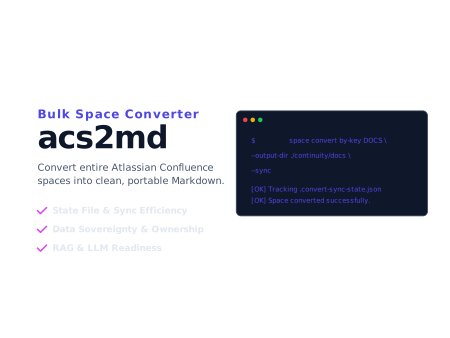
acs2md space convert by-key TEAMDOCS --output-dir ./docsThe output directory behavior is also important: acs2md appends the space key as a subdirectory, so the export lands in ./docs/TEAMDOCS rather than directly in ./docs.
From there, the tool will:
- fetch space pages
- preserve the hierarchy as nested folders and files
- render Markdown output
- create
.convert-sync-state.json - skip unchanged pages on later runs
On the observed live docs, the default behavior is incremental mode when neither --sync nor --incremental is specified.
If something fails, use the supported debug path
The docs give a clean escalation order:
- re-run
acs2md doctor - verify the active config with
acs2md config where - confirm the license with
acs2md license validate - confirm scope again with
space listandspace pages - reproduce with debug logging and then generate a support bundle
acs2md --debug --log-file ./acs2md.log space convert by-key TEAMDOCS --output-dir ./docs
acs2md support --log-file ./acs2md.log --output bundle.txt
That workflow is stronger than ad hoc debugging because it captures environment, diagnostics, and recent logs in one place.
Why these checks double as compliance evidence
The setup sequence above is also a quiet evidence-generation flow for ISO 27001 and SOC 2 programs.
acs2md doctorproduces a deterministic readiness check that maps directly onto ISO/IEC 27001:2022 A.8.6 (capacity management) and A.5.37 (documented operating procedures) — operators can show that pre-export validation is repeatable, not improvised.acs2md config whereandacs2md license validateproduce evidence that ISO/IEC 27001:2022 A.5.18 (access rights) and license-compliance commitments are checked before content leaves the source platform.- The
--debug --log-filepath produces tamper-evident logs for SOC 2 CC7.2 (system monitoring) and NIS 2 incident-handling evidence. Keep these logs in the same retention scheme as your other operational logs.
You do not need to bolt on a second tool to produce this evidence. The setup commands you would run anyway are already the right artifact.
Final recommendation
The right first acs2md run is not just “install and convert.” It is install, verify, configure, diagnose, discover, and only then export.
If you follow that order, the first bulk run is usually straightforward. If you skip it, you push setup mistakes into the most expensive part of the workflow. Start with doctor, confirm the space with space pages --tree, and let the first successful export happen only after the machine is obviously ready.
Discuss this article
Comments are ready for Giscus, but the public repository and category settings have not been added yet.